How to Set Up a Cron Job for Ratals Review Request Emails
Author: Rob CuppettPosted On: Aug. 06, 2026Last Updated: Aug. 07, 2026
Ratals Commerce can automatically send review request emails to customers after their orders have been completed. These emails invite customers to rate and review the products they purchased, helping you collect useful feedback and providing future shoppers with additional information about your products.
Product reviews are one of the most effective ways to build trust with new customers. Reviews provide real-world feedback from verified purchasers, helping shoppers make informed buying decisions while giving your business valuable insight into customer satisfaction.
Review request emails are not sent immediately when an order is updated. Instead, a cron job must run on your server to find eligible completed orders and send the configured messages. Once the cron job is set up, Ratals can handle the review request process automatically without requiring an administrator to manually send each email.
The script responsible for processing review request emails is located at:
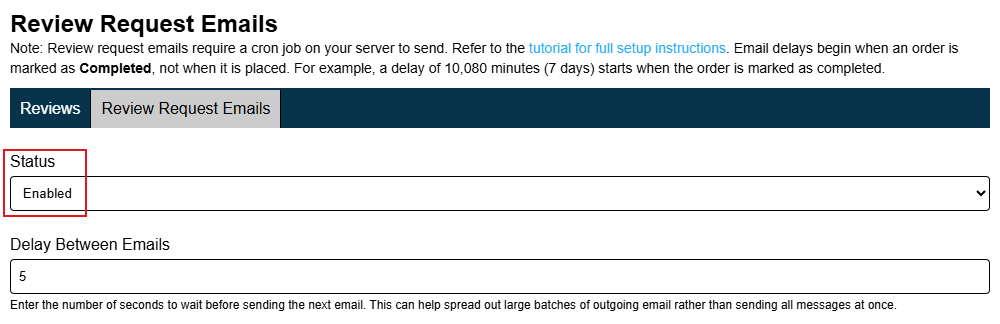
Review request email settings can be managed in the Ratals admin area. The entire review request email system can be enabled or disabled using the master status setting. When the master setting is disabled, no review request emails will be sent, even if one or more individual email messages are enabled.
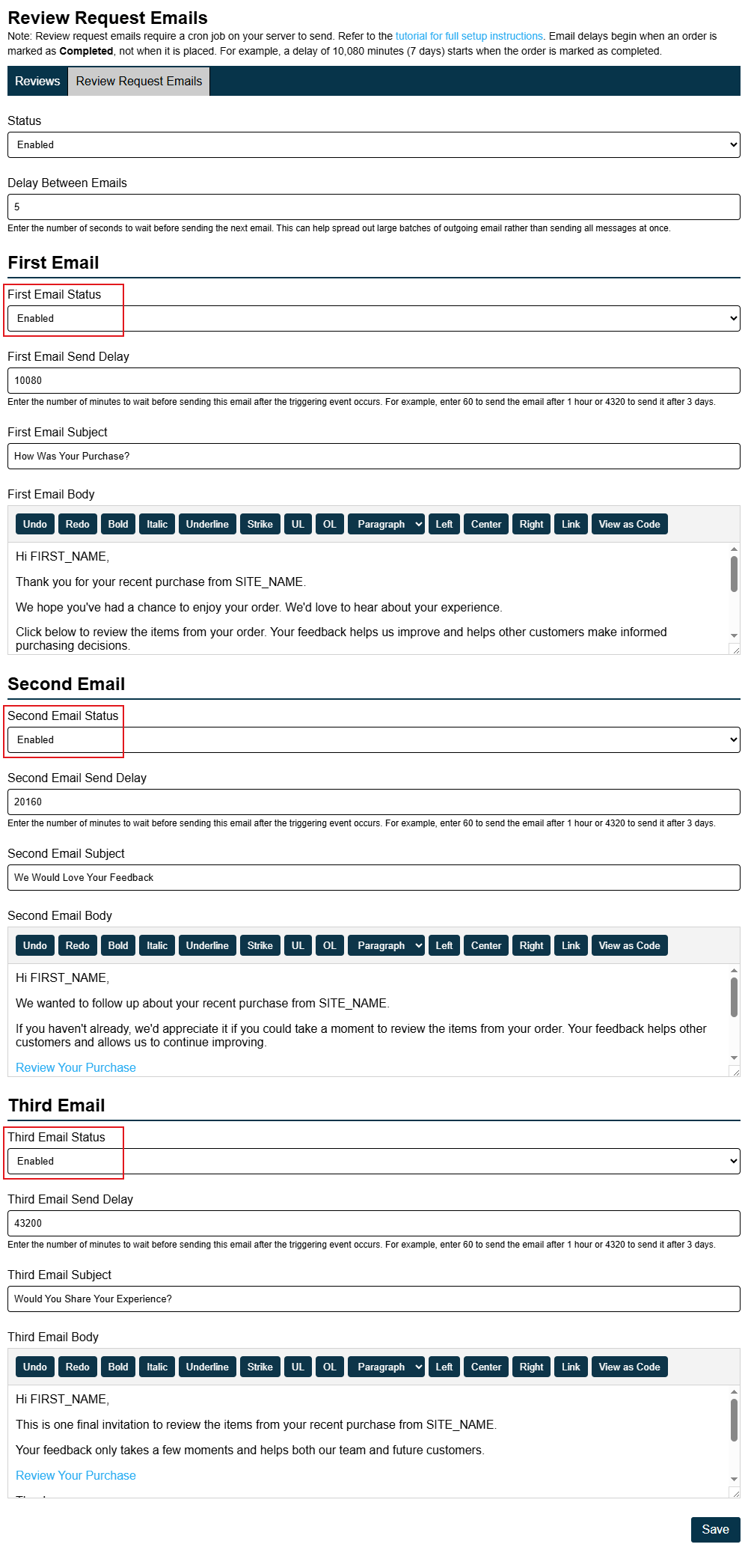
Ratals supports up to three review request emails. Each email can be enabled or disabled independently, allowing you to create a follow-up sequence that matches your business and customer communication preferences.
Each message can have its own:
Status
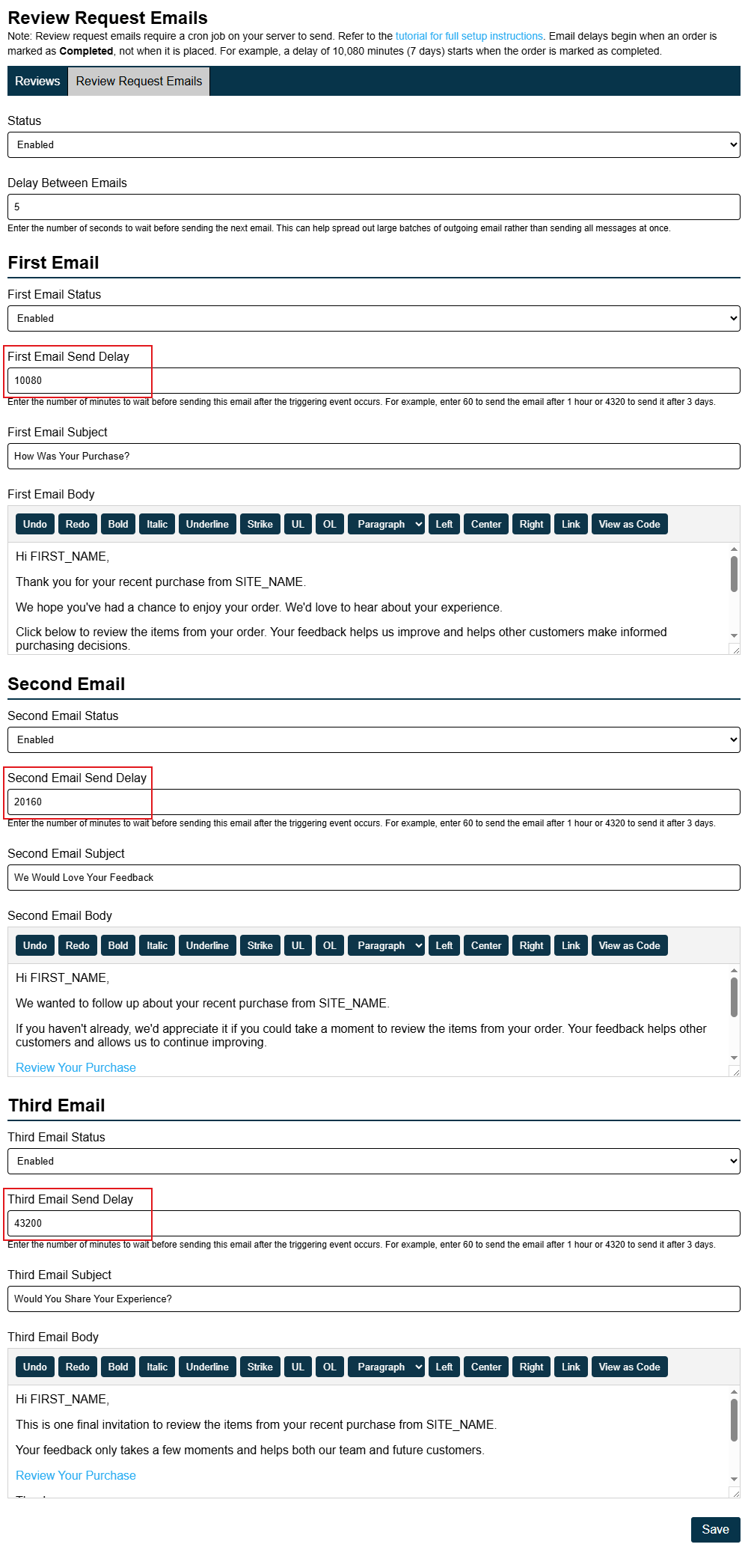
Send delay
Email subject
Email body content
The delay for each email controls when that message becomes eligible to send. This allows you to create a sequence in which the first email is sent after the customer has had time to receive and use the product, followed by additional reminders later if desired.
For example, you could configure the sequence as follows:
Send the first email after 10,080 minutes, which is 7 days.
Send the second email several days after the first email.
Send the third and final reminder after an additional delay.
You are not required to enable all three messages. You may enable only the first email, use the first and second emails, or enable all three messages. Disabling an individual email prevents that message from being sent without affecting the other enabled messages.
All configured delays begin after the order status is first marked as Completed. They do not begin when the order is originally placed.
When an order is first changed to Completed, Ratals stores the completion date and time on the order. The review request email processor uses that completion timestamp to determine when the first email becomes eligible to send.
For example, if the first email delay is set to 10,080 minutes, the customer becomes eligible to receive the first review request 7 days after the order was marked as Completed. This gives the order time to arrive at the customer's shipping address before Ratals requests a product review.
This is important when configuring your delays. A 7-day delay does not mean 7 days after checkout or payment. It means 7 days after the order enters the Completed status.
The review request email processor also includes a two-day processing window. If an order has exceeded the configured delay by more than two days, that email will no longer be sent. This prevents older completed orders from suddenly receiving review request emails if the feature is enabled later or if the cron job has not been running.
For example, if an email has a 7-day delay, Ratals will only consider orders that reached their scheduled send time within the allowed two-day processing window. It will not go back through an unlimited history of older completed orders and send outdated review requests.
Because of this safeguard, it is recommended that the review request cron job run at least once per day. A daily schedule gives the script multiple opportunities to process each eligible email before the two-day processing window expires.
First, enable the master Review Request Emails setting. This controls the entire feature. If the master setting is disabled, the cron script may still run, but it will not send review request messages.
Next, configure each email you want to use. Ratals supports up to three messages, and each message can be enabled or disabled independently.
For each enabled email, review and configure:
The email status
The send delay
The email subject
The email body content
Enter each delay in minutes. The delay begins when the order status is first marked as Completed. Ratals then waits the configured number of minutes before that email becomes eligible to send.
Ratals also includes a two-day processing window when checking eligible review request emails. If an order has exceeded the configured delay by more than two days, that email will no longer be sent. This prevents older completed orders from suddenly receiving review request emails if the feature is enabled later or if the cron job has not been running.
You are not required to use all three messages. A simple review request process may use only one email sent several days after an order is completed. A more complete sequence may use all three emails over a longer follow-up period.
Make sure the first email delay gives the order enough time to be delivered. Additional messages should be spaced far enough apart that customers are not contacted too frequently.
SMTP Sending Email Configuration
Review request emails are sent using your website's primary SMTP email configuration. Before enabling review request emails, make sure your SMTP settings have been configured and tested. If your website is already successfully sending emails such as customer account creation emails or order confirmation emails, then your SMTP settings are configured correctly.
The SMTP settings used by review request emails are configured in the Ratals admin area under:
Admin > Website > Site Settings > Contact Information
Within that page, configure the settings under the Site Email Address & SMTP Email Setup section.
The email address configured there is used as the sender for review request emails, along with the associated SMTP server settings. If SMTP has not been configured correctly, review request emails will not be delivered.
Ratals sends automated emails through your configured SMTP server rather than using PHP's standard mail function. Using SMTP helps improve email deliverability by authenticating your messages with your mail provider and supporting modern email verification standards such as SPF, DKIM, and DMARC. These standards help receiving mail providers verify that your emails are legitimately being sent from your domain, increasing the likelihood that they are delivered to the inbox instead of being filtered as spam.
Setting Up the Cron Job Through cPanel
If your hosting provider includes cPanel, you can configure a cron job through its Cron Jobs interface.
Log in to your cPanel account.
Open Cron Jobs.
Under Add New Cron Job, choose how often you want the script to run.
For most websites, running the review request email processor once per day is recommended.
In the command field, enter the PHP binary followed by the full path to the review request email script:
The PHP binary path varies between hosting providers. Common locations include:
/usr/local/bin/php
/usr/bin/php
Confirm the correct PHP path with your hosting provider or server administrator before saving your cron job.
Once saved, cPanel will automatically execute the review request email processor according to the schedule you selected.
Many cPanel installations also allow you to configure an email address to receive cron job notifications. This can be helpful while initially testing your configuration. After confirming the cron job is running successfully, you may wish to disable routine notifications.
Setting Up the Cron Job Through SSH
If you have SSH access to your server, you can create the cron job directly from the command line.
Connect to your server using SSH.
Open your crontab:
crontab -e
Add the following entry to execute the review request email processor once each day at 2:00 a.m.:
Save and exit the editor. Your server will automatically execute the script according to the schedule you configured.
If your server uses /usr/bin/php instead of /usr/local/bin/php, simply update the command to use the correct PHP binary.
Recommended Cron Schedule
For most Ratals websites, running the review request email processor once per day is recommended. Review request emails are typically sent several days after an order has been completed, so there is little benefit to running the script every few minutes or every hour.
You may run the cron job more frequently if desired. However, doing so will not cause review request emails to be sent earlier than their configured delay. The script only processes emails that have reached their scheduled send time.
Avoid running the cron job less frequently than once every two days. Since Ratals only processes review requests that fall within the two-day processing window, an unreliable or infrequent cron schedule could cause eligible review requests to be skipped.
A daily schedule provides multiple opportunities for Ratals to process every eligible review request before the processing window expires while minimizing unnecessary server activity.
Why This Cron Job Is Required
The review request email cron job allows Ratals to automatically collect product reviews without requiring any manual work after an order has been completed.
Each time the script runs, it checks completed orders, evaluates the master Review Request Emails setting along with each enabled email, determines which review request message should be sent next, skips previously sent or outdated requests, and sends eligible emails automatically.
Each review request email contains a secure review link that takes the customer directly to your website's "Review Your Purchase" page. If the order contains multiple products, customers can review each purchased item individually from a single page, making the review process simple and convenient while ensuring each product receives its own review.
By enabling the feature, configuring your review request email sequence, and running the cron job once per day, Ratals can automatically collect verified product reviews while allowing you to control how many reminder emails are sent and how long the system waits before sending each one.
Rob Cuppett is the founder and lead engineer behind Ratals, bringing over 25 years of experience in digital marketing, software development, and business automation. He shares expert tutorials, practical guides, and insights to help business owners optimize, customize, and fully leverage software solutions to grow their businesses efficiently.
Why Ratals
Start free with the CMS, then add Commerce, ERP, or AI only when you need them. Each one activates on your existing installation - no migration, no replatforming, no rebuild - ever.
See how our single-data-model architecture lets your entire business run on one connected system instead of stitching together separate software applications.