How to Create Custom Database-Driven Templates in Ratals
Author: Rob CuppettPosted On: May. 29, 2026Last Updated: Jul. 16, 2026
One of the most powerful features of Ratals is the ability to create completely custom database-driven pages and templates using PHP. While Ratals includes a large amount of built-in CMS, Commerce, and ERP functionality, there are times when you may want to build something unique for your business or website.
Examples could include:
Custom product displays
Vendor landing pages
Customer dashboards
Advanced reporting pages
Dynamic blog layouts
ERP-driven frontend tools
Custom search results
Database-powered landing pages
Internal business applications
Ratals gives developers the ability to create custom template logic that runs directly with frontend templates while still integrating with the core platform structure.
This guide explains how to create custom PHP files that connect to Ratals templates and allow you to pull data from your database anytime a page loads.
Understanding How Ratals Template Loading Works
Ratals templates support assigned types that determine what backend PHP logic should run when a template is loaded. This makes it possible to separate frontend template design from backend PHP functionality.
Important: These folders contain core Ratals files. You can safely create your own uniquely named files without affecting the system.
Which Folder Should You Use?
The folder you choose depends on the type of functionality you are building:
CMS Folder: Standard website pages, blogs, content pages, or general frontend functionality
Commerce Folder: Ecommerce pages, products, carts, checkout functionality, subscriptions, or anything related to Commerce
ERP Folder: ERP dashboards, reporting tools, accounting data, inventory management, or internal business operations
For example, if you are building a product-driven page that pulls inventory or pricing data, you should use the Commerce folder.
Step 2 - Register a New Assigned Type
After creating your PHP file, the next step is connecting it to the Ratals template system.
To do this, you must create a new Assigned Type.
In the admin panel go to:
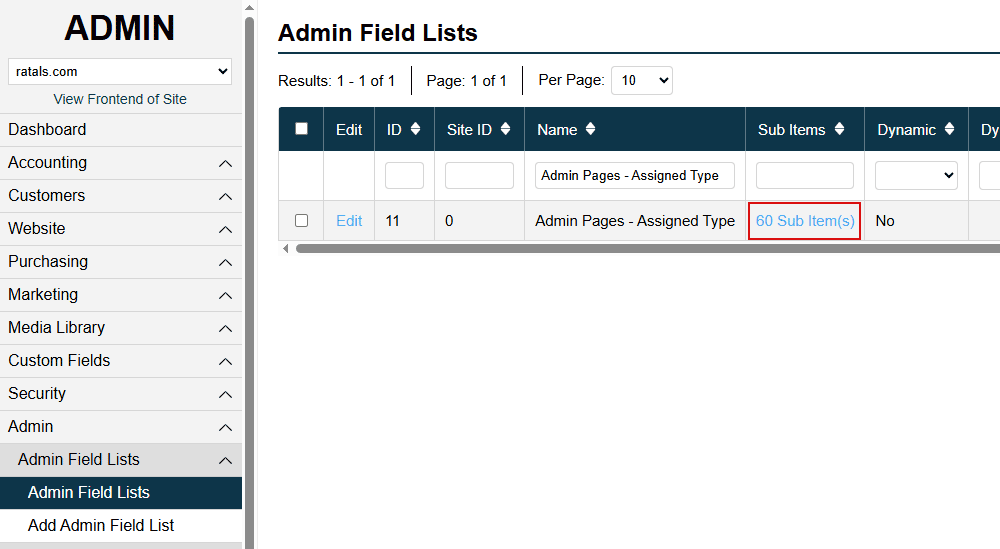
Admin > Admin Field List
Search for:
Admin Pages - Assigned Type
Inside that field list, click the Sub Item(s) link to view and manage existing options like so:
Important: Make sure your new Assigned Type name is unique and not already used by another template or system process.
For example, you might create an Assigned Type called:
Custom Product Page
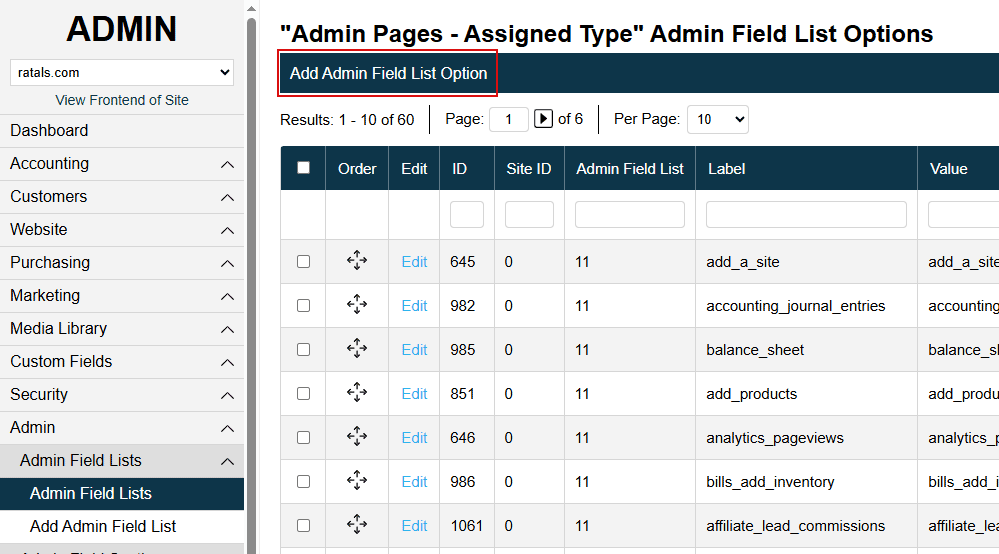
After clicking Sub Item(s), click Add Admin Field List Option to create your new Assigned Type.
Step 3 - Connect Your Assigned Type to Your PHP File
Inside your custom PHP file, you will check for the Assigned Type you created.
Code example:
<?php if(isset($template_file_type_row['assigned_type']) && $template_file_type_row['assigned_type'] == 'Custom Product Page') { // Your custom PHP logic here } ?>
This tells Ratals to execute your custom PHP whenever a template using that Assigned Type is loaded.
You can place any logic inside this block, including:
Database queries
API calls
Custom calculations
Dynamic content generation
Inventory lookups
User-based functionality
Frontend variables
Conditional logic
Step 4 - Create Your Template File
Now that your backend PHP logic is connected, the next step is creating the frontend template file.
Go to:
Website > Templates > Templates
Select the enabled template set you are currently editing.
Next:
Click the Sub Item(s) link
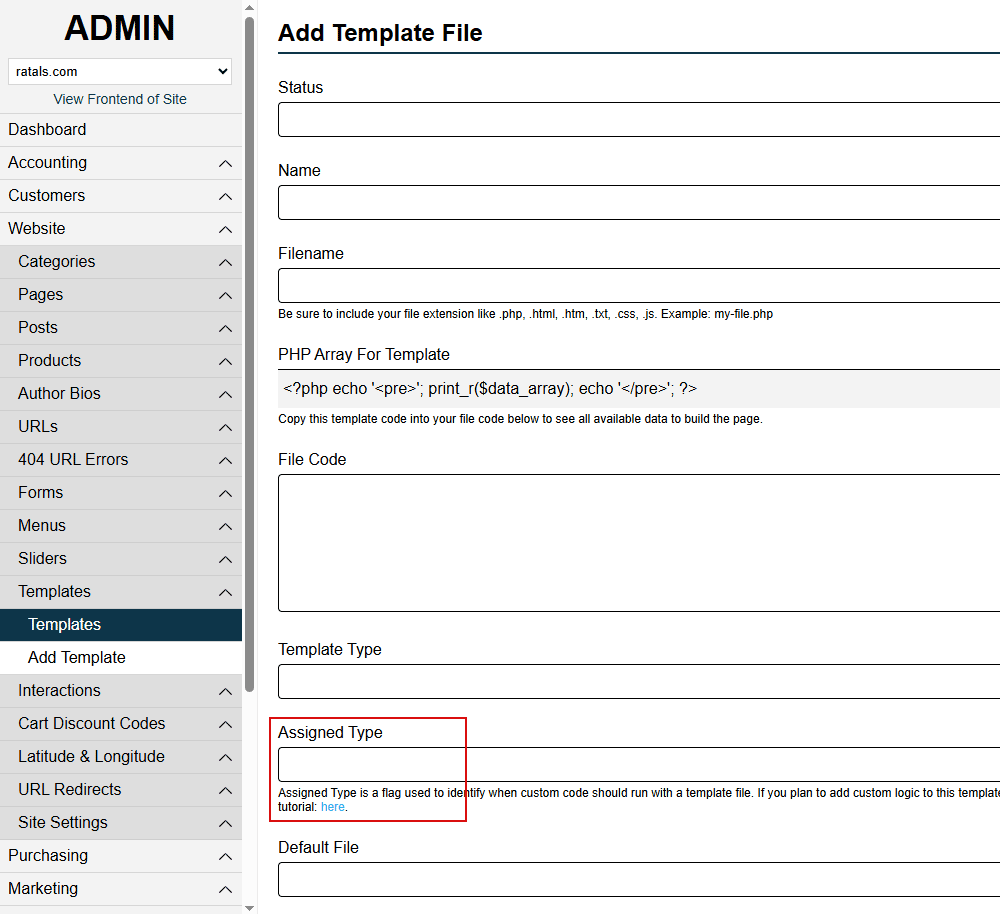
Click Add Template File
Enter your template file name
Add your frontend HTML/PHP code
Select your Assigned Type
When you create the template file, Ratals will automatically generate the physical PHP template file on your server.
For example:
my-custom-template.php
The code you enter in the "File Code" textarea will be written directly into that template file.
Step 5 - Select Your Assigned Type
Inside the template editor, you will see a dropdown called:
Assigned Type
Select the Assigned Type you created earlier.
This connects:
Your frontend template
Your backend PHP loader file
Your custom database logic
Once linked together, Ratals will automatically execute your custom code whenever the template loads.
Pulling Data From the Database
At this point, you can begin building fully dynamic templates using your database data.
Because your PHP executes during template loading, you have full access to build advanced dynamic functionality directly into the frontend.
Learning From Existing Ratals Files
One of the best ways to understand how Ratals works is by reviewing existing files in the load-page directories.
These files show you:
How database queries are structured
How template variables are assigned
How frontend rendering works
How dynamic page loading operates
How Commerce and ERP integrate into templates
Studying these examples will help you build more advanced and efficient custom functionality.
Final Thoughts
While custom templates require basic PHP knowledge, Ratals provides a highly flexible system for building advanced functionality directly into your platform.
By combining custom load-page files, Assigned Types, and frontend templates, you can create virtually any type of dynamic page or database-driven experience.
This gives you full control over your frontend while still working inside the structured Ratals CMS, Commerce, and ERP system. Whether you're building simple dynamic content or complex business applications, the template system is designed to scale with your needs.
Rob Cuppett is the founder and lead engineer behind Ratals, bringing over 25 years of experience in digital marketing, software development, and business automation. He shares expert tutorials, practical guides, and insights to help business owners optimize, customize, and fully leverage software solutions to grow their businesses efficiently.
Why Ratals
Start free with the CMS, then add Commerce, ERP, or AI only when you need them. Each one activates on your existing installation - no migration, no replatforming, no rebuild - ever.
See how our single-data-model architecture lets your entire business run on one connected system instead of stitching together separate software applications.